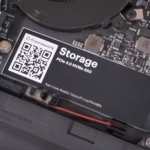


SSDs have shown to be highly reliable in the real world, despite a lot of early handwringing. I personally own a number of SSDs that are fairly old—some of them date back ten years! They’re still going strong, and if I take care of them, I’ll probably get years more out of them. However, I’ve also ended SSDs early, and if you want to avoid that for as long as possible, you need develop three key behaviors.
Avoiding write-heavy behaviors that burn through endurance
The way that SSDs work, and how they stop working, can be pretty counterintuitive. Inside an SSD there are memory cells. These cells hold an electrical charge that represents a binary value. At the most basic level, if there’s a charge, then it’s one value, and if there’s a much lower charge, then it’s the other value. In the most robust type of SSD memory – single-level cell – each of these memory cells stores only a single bit.
By reducing the insulation, each time the voltage is changed, the cell’s capacity to retain a charge is harmed. This isn’t a major problem with the SLC SSD I just mentioned because you’re attempting to read the difference between two very distinct voltage ranges. Therefore, you can determine if a cell is in one range or another even if the charge leaks out much. Because the cell essentially needs to wear down significantly for the voltage ranges to overlap beyond what the controller can safely distinguish, it takes a very long time for these SSD
Unfortunately, SSDs that store only one bit per cell are highly costly. Thus, the majority of SSDs store many bits in each cell. They accomplish this by allowing a cell to have several charge levels, each of which represents a distinct bit permutation. Although it allows you to store far more data in the same physical space and is incredibly cost-effective, the issue should be clear. You will now have to distinguish between several smaller voltage ranges, which will make it much more difficult for you to distinguish between these tiny levels of charge.
Modern multi-level cell SSDs have enormous write endurance because of a number of mitigations that I won’t discuss here. More than most people will ever require. Drive manufacturers, however, only guarantee a specific TBW (terabytes written); anything above that is a bonus.
For extended, write-intensive tasks, you should therefore refrain from using less expensive multi-level cell SSDs as your primary drive. Use a secondary SSD as your scratch disk and think of it as disposable, for instance, if you are a film editor. Conversely, less expensive multi-level SSDs work well as video game drives since, once your games are installed, there isn’t much writing involved, and you presumably don’t often delete
Keeping your SSD cool and well-managed
Erasing and writing to an SSD’s memory cells is one factor that reduces its lifespan, but heat is another. SSD memory suffers greatly from higher temperatures. For this reason, a comment regarding the temperatures at which durability is evaluated is included in the lifespan ratings for these drives.
Higher temperatures facilitate the escape of electrons from their cells, and the insulating layer is more severely damaged during the erase-write cycle. Although your SSD can drastically reduce its speed to lower heat and avoid a catastrophic failure, persistently high temperatures will eventually cause it to fail.
You can check the temperature of your SSD with a program like HWMonitor. Check the maximum recorded temperature after leaving it running in the background while you work or play a game as usual. Although this varies based on the particular drive, in general, you don’t want an SSD that is hotter than 70C, and many of them will throttle down speed at that temperature, which is something you don’t want. When under stress, try to maintain the maximum temperature in the low 60s or below 60C.
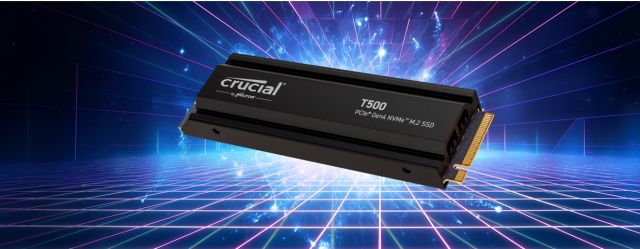
If at all possible, install a heatsink on your SSD. Make that the SSD in a laptop is properly contacting any built-in cooling system. Your SSDs in a desktop computer must also have access to airflow, so it’s a good idea to have at least one case fan circulating air over them.
Using the tools provided by your OS to lessen needless stress

SSD longevity is already much extended by modern operating systems. Therefore, unlike in the past, you don’t have to adjust important OS settings. On the other hand, you might think about lowering your OS’s background activities. For example, if you don’t really require instant search functionality, you can disable background disk indexing. You can accomplish this by turning off search indexing for particular drives. Therefore, it is not necessary to index a secondary drive that solely contains video games or that serves as a scratch drive for your job. Nevertheless, given the usage patterns of the majority of individuals, this probably doesn’t make a significant difference.
Unless you want the highest level of performance from your computer, choosing a balanced or energy-efficient power plan will help lessen the strain on your drives and lower running temperatures.
Moving frequent locations where your apps store data, like as your Downloads folder, to a secondary drive is another option.
Lastly, it’s usually advised to overprovision your SSD by keeping 10–20% of its capacity available. Since current disks already have extra space that is concealed from you and even the operating system for this purpose, I personally disagree. Even so, you should leave some room on your system disk for your swap files, because full SSDs actually perform write operations more slowly.